
AI Image Enhancer: enhance photo quality online New
Sharpen, denoise and upscale photos to 2K or 4K
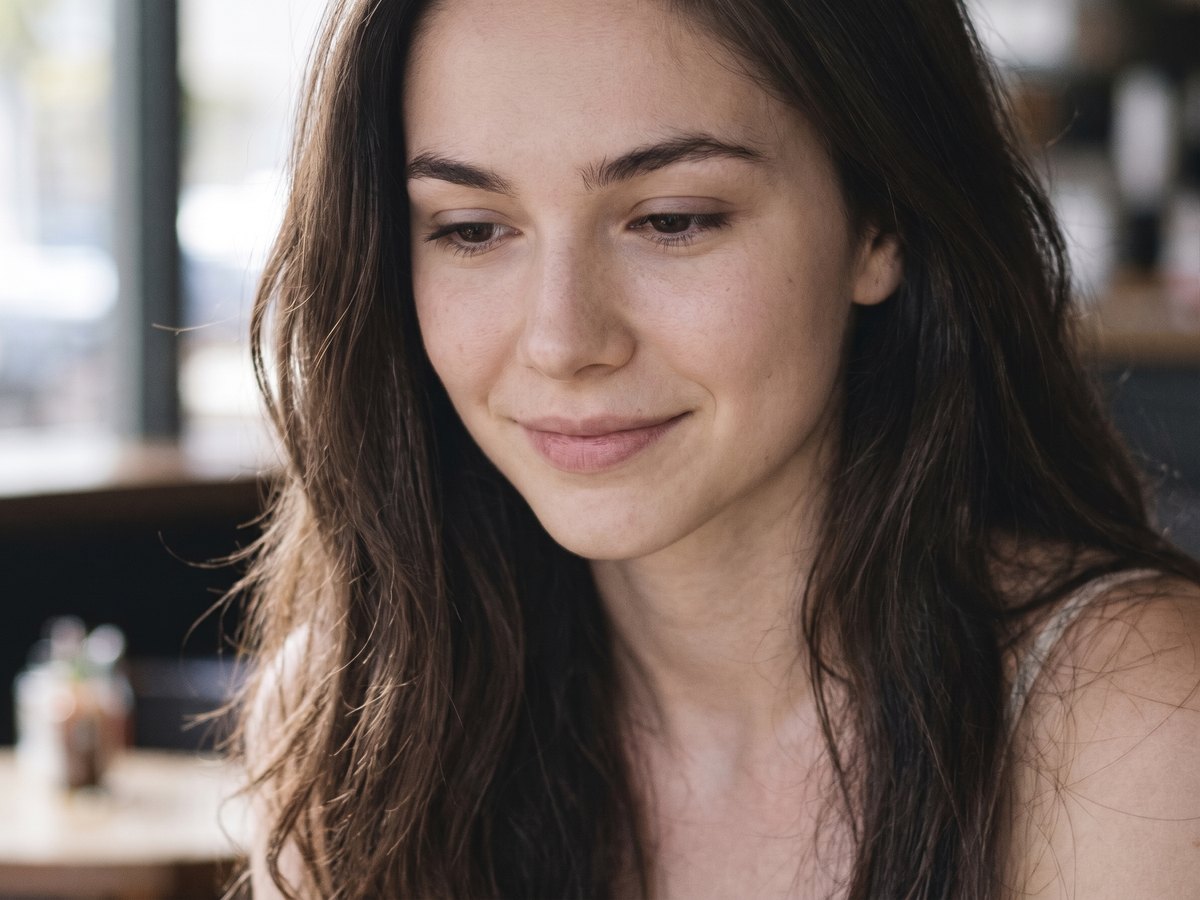
 BeforeAfter
What is AI Image Enhancer?
Upload a photo and the AI image enhancer turns it into a clean, sharp, high-resolution version of the same picture. It removes noise, grain and JPEG compression artifacts, recovers fine detail and texture, fixes dull exposure and white balance, and outputs at 2K or 4K. There is no prompt to write and no slider to tune: one click, and you compare the original and the result side by side.
The same page also unblurs photos, colorizes black and white pictures and restores old, damaged prints: switch the tab above the upload box and the photo you already uploaded stays in place. Every mode runs on Nano Banana 2.1 and Pro from Google or Seedream 5.0 Pro and Flash from ByteDance, and is told to keep the picture exactly as it is, with the same people, faces, text and composition, while only the quality changes.
What you can make with AI Image Enhancer
Upload and generate. The AI enhancer decides what the photo needs, from denoising to sharpening to colour correction, without presets to choose from.
Small, soft or heavily compressed images come back at 2K or 4K with real detail, ready for printing, listings and big screens.
Faces, expressions, text and composition are kept as they are. No beauty filter, no new objects, no change of style.
Enhance, unblur, colorize and restore from the same upload. Chain them: restore an old print, then enhance it to 4K.
Drag the slider over the result to check every detail against the original before you download.
Nano Banana for 4K and the finest detail, Seedream 5.0 Flash from 8 credits a photo. Switch models without re-uploading.
Done in three steps
- 01Upload your photo
Drop a photo onto the upload box: a phone snapshot, a screenshot, a compressed image from a chat app or an old scan all work.
- 02Pick the mode and size
Keep Enhance for an all-round quality boost, or switch to Unblur, Colorize or Restore. Choose 2K or 4K; pick Nano Banana Pro for the most detail or Seedream 5.0 Flash for the lowest cost.
- 03Compare and download
Drag the slider to compare the original and the enhanced photo, then download it or send it straight to the next step.
- Start from the largest copy of the photo you have; every pixel of real detail helps.
- Choose 4K for prints and large displays, 2K for web and social media.
- For a blurry or out-of-focus photo, the Unblur tab gives a stronger, more targeted fix.
- For scratched, faded or torn prints, use Restore first, then run Enhance on the result.
Built for these creators
Turn phone photos and supplier images into crisp, high-resolution product pictures for listings.
Rescue noisy low-light shots and soft frames without a long manual retouch.
Re-sharpen images that lost quality after being sent and re-saved through chat apps.
Bring old scans and low-resolution family photos up to a quality you can print and frame.
AI Image Enhancer FAQ
Try AI Image Enhancer now
No prompt skills needed. Write a sentence, pick a model and generate; the first images are on us.